

Appearance
Map
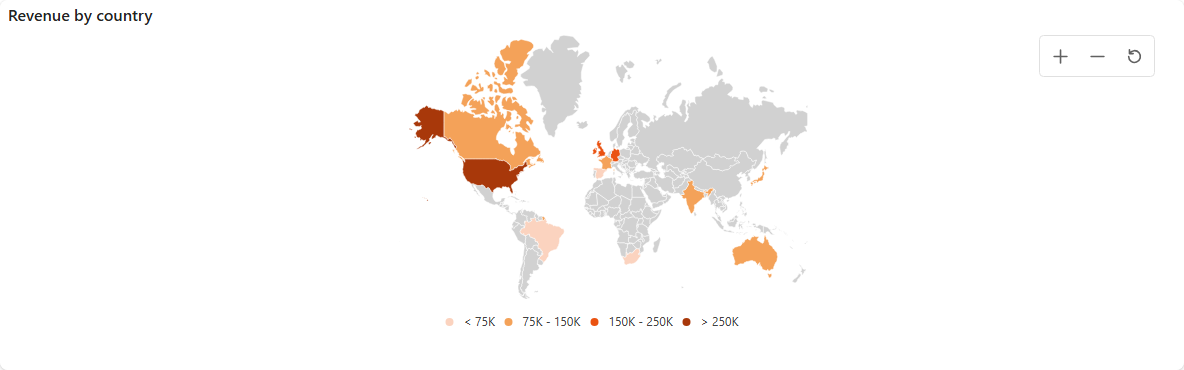
The Map component shows your data on a world map, such as the number of sales per country, or the number of leads or support tickets. It can colour countries, draw bubbles, or place markers at exact locations.
Map types
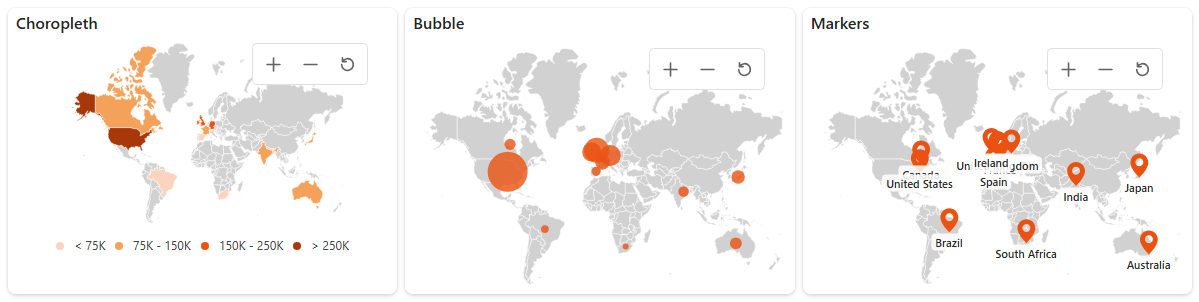
| Map type | What it shows | Fields |
|---|---|---|
| Choropleth | Colours each country on a colour scale by its value. | Country, Value |
| Bubble | Draws a bubble on each country. The bigger the value, the bigger the bubble. | Country, Value (a number) |
| Markers | Places a marker at each item's latitude and longitude, for example an office, a store or a site. | Latitude, Longitude, Value, optional Label and Icon |
Add a map
- Create a data source with a country column (for Choropleth and Bubble) or coordinates (for Markers), and the value to show.
- Open the dashboard in edit mode.
- In the Widgets pane, open the General tab and drag Map onto the dashboard. Resize it.
- Select the map. On the Properties tab, give it a Title and, if you like, a Subtitle, Description and Icon (see the Common settings).
- Under Look & Feel, decide whether it has an Elevated Border and whether to Hide on Mobile.
- Under Basic Settings, choose the Map Type and the other options, see Settings.
- Open the Assign Data tab, click Choose data source and assign the fields, see below.
- Click Save & Exit.
Assign the fields
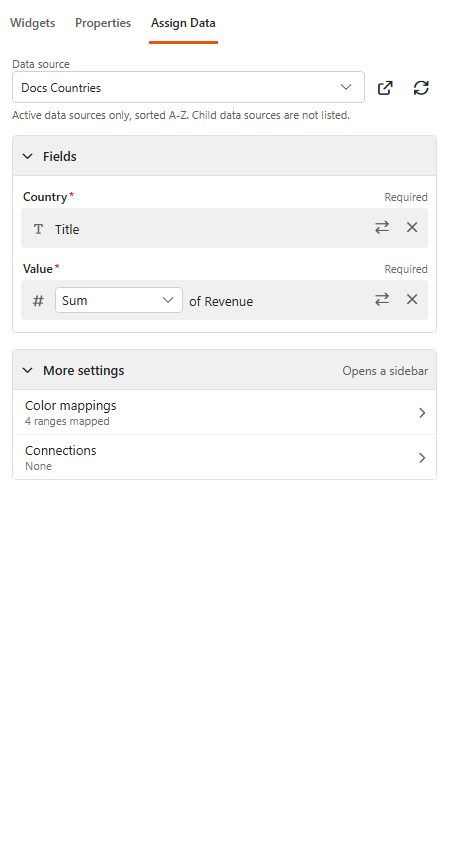
For Choropleth and Bubble maps:
| Field | What it does |
|---|---|
| Country (required) | A text, lookup or choice field with the country name. |
| Value (required) | The value per country. Number fields are summed or counted. Bubble maps need a number field; Choropleth maps also accept text values, coloured with Color mappings. |
For Markers maps:
| Field | What it does |
|---|---|
| Latitude (required) | A number or SharePoint Location column. |
| Longitude (required) | A number or SharePoint Location column. |
| Value (required) | The value per marker. |
| Label | The marker's label and tooltip. Needed to filter other components by clicking a marker. |
| Icon | A text or choice field with icon names, so each marker can have its own icon. |
Under More settings:
- Color mappings: colours by value. For numbers, add ranges (Min, Max, Color); for text, add a Value and a Color. Without mappings, the default colour palette is used.
- Connections: the components that are filtered when a viewer clicks a country or marker.
Settings
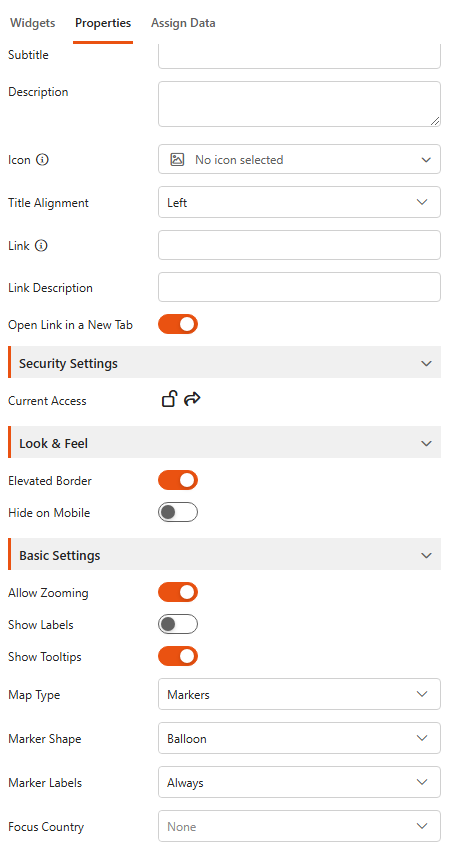
Basic Settings
| Setting | What it does |
|---|---|
| Allow Zooming | Viewers can zoom in and out. |
| Show Labels | Shows country names or marker labels on the map. |
| Show Tooltips | Shows the value when the viewer hovers over a country or marker. |
| Map Type | Choropleth, Bubble or Markers. |
| Show Legend | Choropleth: shows the colour scale. |
| Legend Mode | Choropleth: Default or Interactive. |
| Min Bubble Radius / Max Bubble Radius | Bubble: the size of the smallest and the largest bubble. |
| Marker Shape | Markers: Balloon, Circle, Rectangle, Diamond, Star, Triangle, Inverted Triangle or Pentagon. |
| Marker Labels | Markers: show labels On hover or Always. |
| Focus Country | Zooms the map to one country when it opens. None shows the whole world. |
Related
- Dropdown filter: let viewers filter the map by region or product.