

Appearance
Text
The Text widget adds a block of formatted text to a dashboard: headings, paragraphs, lists, clickable links, or code.
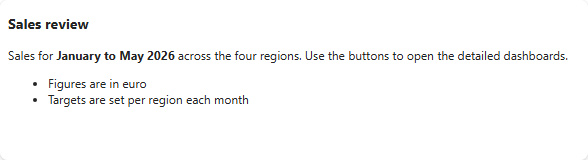
Add a text widget
- Open the dashboard in edit mode.
- In the Widgets pane, open the General tab and drag Text onto the dashboard. Resize it.
- Select the widget. On the Properties tab, click Open editor.
- Type your text and format it with the toolbar, see below. Click Save to put it on the widget.
- Click Save & Exit.
A Text widget has no data source, so it has no Assign Data tab.
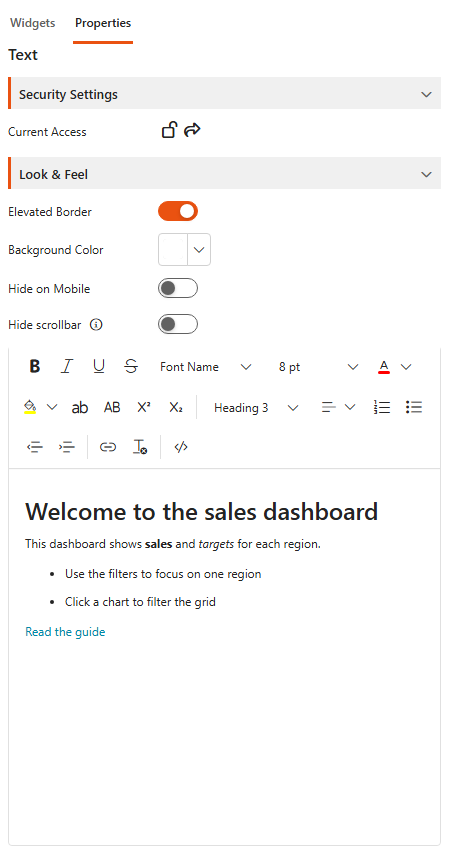
The text editor
The editor opens in its own window. Next to the editor, a live preview shows the text as it will look in the widget, at the widget's size and with its background, scaled to fit. The line above the preview gives the widget's size and the scale. Drag the bar between the editor and the preview to give either more room, or switch to full screen to see the widget at its real size.
The widget changes only when you click Save. If you close the editor with unsaved changes (Cancel, the close button or Escape), Sintel BI asks whether to Save or Discard them.
The toolbar has:
- Bold, Italic, Underline, Strikethrough, superscript and subscript.
- Font, font size, font colour and background colour.
- Upper case and lower case.
- Formats: Paragraph, Code, Heading 1 to Heading 4 and Plain text.
- Alignment, numbered and bulleted lists, indent and outdent.
- Insert link, to add a clickable link.
- Clear format.
- Source code, to edit the HTML directly.
Settings
| Setting | What it does |
|---|---|
| Hide scrollbar | Hides the vertical scrollbar, even when the text is longer than the widget. |
Under Look & Feel you can turn the Elevated Border on or off, change the Background Color and Hide on Mobile. Security Settings control who can see the widget, see the Common settings.
TIP
For your own HTML and CSS, such as styled boxes or embedded content, use the Custom HTML widget. For text that includes values from your data, use the Smart card.